
Archive for February, 2011

Cisco Load Balancing with Failover setup example

Welcome to Linux Screw! If you're new here, you may want to subscribe our RSS feed.

cisco logoThere is Cisco router of 7200 series with 4 FastEthernet interfaces (FE) and 2 serial ports. It should act as load balancer and failover for LAN connected to it via one FE 1/0 interface while two identical Internet connections are going to FE 0/0 and FE 0/1 (let’s name these connections as ISP_1 and ISP_2).

No dynamic routing protocols are used by ISPs but only static routing. The primary task is to ensure quick failover between two Internet connections so LAN users are automatically switched to ISP_2 if ISP_1 fails and vice versa. When both ISP_1 and ISP_2 are online the traffic of LAN users should be shared between two links to double available bandwidth on uplink (Tx) and downlink (Rx), in other words the router should be configured for load balancing between the links. You can see a network diagram below:

Load balancing setup description

There are two basic options available: per-destination or per-packet load balancing. Since ISP_1 and ISP_2 connections have almost the same link characteristics including delay, jitter and bandwidth, it is reasonable idea to pick per-packet option. In comparison to per-destination load balancing approach per-packet uses more router’s hardware resources but makes it possible to share traffic between connections more evenly. For better forwarding performance the router will be configured for Cisco Express Forwarding or simply CEF per-packet load balancing.

Failover description

Every 30 seconds the router will ping two IP addresses through ISP_1 and two other IP addresses via ISP_2. If both IPs via ISP_1 becomes unreachable (we assume that ISP_1 connection fails in this case) the router will delete ISP_1’s route from its routing table so ISP_2 becomes the only Internet connection for LAN users. Meantime the router still continues pinging two ISP_1’s IP addresses and once they become reachable back ISP_1 is added to ISP_2 as an active Internet connection link. Such failover scenario works in absolutely the same way for ISP_2. Usually this is reasonable idea to ping IP addresses of each provider’s DNS servers when monitoring availability of each ISP.

Miscellaneous details

Notice that CEF per-packet load balancing requires IOS version of 12.0+ while failover setup described above needs 12.4+ IOS version so you have to make sure your Cisco router runs at least 12.4 version of operating system. E.g. c7200-ik9o3s-mz.124-12c.bin would be ok.

Cisco router’s configuration with comments

! This line enables Cisco Express Forwarding (CEF)
ip cef
!
ip sla monitor 1
 type echo protocol ipIcmpEcho 10.0.0.100 source-interface FastEthernet0/0
 ! IP address 10.0.0.100 is primary DNS of ISP_1
 timeout 1000
 threshold 250
 frequency 30
ip sla monitor schedule 1 life forever start-time now
ip sla monitor 2
 type echo protocol ipIcmpEcho 10.0.0.101 source-interface FastEthernet0/0
 ! IP address 10.0.0.101 is secondary DNS of ISP_1
 timeout 1000
 threshold 250
 frequency 30
ip sla monitor schedule 2 life forever start-time now
!
!
ip sla monitor 3
 type echo protocol ipIcmpEcho 20.0.0.100 source-interface FastEthernet0/1
 ! IP address 20.0.0.100 is primary DNS of ISP_2
 timeout 1000
 threshold 250
 frequency 30
ip sla monitor schedule 3 life forever start-time now
ip sla monitor 4
 type echo protocol ipIcmpEcho 20.0.0.101 source-interface FastEthernet0/1
 ! IP address 20.0.0.101 is primary DNS of ISP_2
 timeout 1000
 threshold 250
 frequency 30
ip sla monitor schedule 4 life forever start-time now
!
!
track 1 rtr 1 reachability
track 2 rtr 2 reachability
track 3 rtr 3 reachability
track 4 rtr 4 reachability
!
! Tracker for ISP_1
track 10 list boolean or
 object 1
 object 2
!
! Tracker for ISP_2
track 20 list boolean or
 object 3
 object 4
!
! Interface connected to ISP_1
interface FastEthernet0/0
 ip address 10.0.0.2 255.255.255.0
 ip load-sharing per-packet
 duplex auto
 speed auto
!
! Interface connected to ISP_2
interface FastEthernet0/1
 ip address 20.0.0.2 255.255.255.0
 ip load-sharing per-packet
 duplex auto
 speed auto
!
! Interface connected to LAN
interface FastEthernet1/0
 ip address 192.168.100.2 255.255.255.0
 ip load-sharing per-packet
 duplex auto
 speed auto
!
! Two equal cost static routes to ISP_1 and ISP_2
ip route 0.0.0.0 0.0.0.0 10.0.0.1 track 10
ip route 0.0.0.0 0.0.0.0 20.0.0.1 track 20
!

iomoio.com — fresh and clean mp3 downloads

Just came across pretty nice mp3 download website www.iomoio.com. I personally fond of useful and well designed websites so let me share a quick review of iomoio. In brief iomoio provides truly easy to use mp3 downloads service offering competitive prices in comparison to similar websites. For example, most of my favorite mp3 songs I have already downloaded from this website were priced at $0.16 each.

Mp3 Bitrates and Music Quality

All the music available for downloading from iomoio comes as mp3 files with the upper bitrate of 320 Kbps. It is worth to mention that all mp3 songs are DRM free so can be played on any device that can read and play mp3 files. I listen downloaded music files on my iPod Touch 4g and can confirm that mp3 quality is more than acceptable. The most important thing is that I can import all music downloaded from iomoio to iTunes and then just drug&drop to the iPod. By the way since iTunes is available only for Windows and Mac OS I have to run Virtualbox inside my Linux desktop to open the possibility to sync my iPod with music collection downloaded from iomoio.com.

Prices and Payment methods

Most of mp3 songs at iomoio are available at $0.16 (16¢). If you compare that price with e.g. Amazon’s or iTunes’ you’ll see that this is more than competitive price available on the market (for example, Amazon sells its best selling albums at about $1 for each mp3 song). Once completed simple registration at iomoio.com you’ll get $0.32 to your account for free and can spend them to get two songs for free before to refill your account. When it becomes necessary to can add some money to your account using PayPal or credit card payment (Visa and Mastercard are accepted). The minimum top up is $16 but it’s better to top up a little bit more: refill $32.00 to get free $16.00 ($48 will be added to account), refill $96.00 to get free $48.00 ($144 will be added to your account).

The Bottom Line

www.iomoio.com is fresh and clean mp3 downloads site offering more than competitive prices for mp3 music. I found it to be one of the best websites in this category.

Install nfdump and nfsen netflow tools in Linux
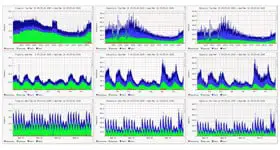
Using nfsen it is possible to view IP traffic statistics on Linux interfaces including the graphs showing data sent and received (see the screenshot to the right) as well as historical information about all data transfers. So after you’ve configured nfsen and nfdump to monitor traffic on certain Linux server or router you’ll be able to answer the following example questions: What IP was downloading data through 48161 last Wednesday? or How many bytes were sent to IP 8.8.8.8 via 53 port from Linux server? These are the only examples so nfdump and nfdump netflow tools gives you wide range of capabilities to monitor and analyze traffic on your Linux host.

Netflow is the protocol developed by Cisco to manage data about IP traffic. In a few words using Netflow you can collect data about all IP data send/received on multiple Cisco/Linux/BSD/Juniper hosts and send it to central Netflow collector that will show you the nice graphs and also will allow to have a complete picture of what data was sent/received on those hosts (including destination and source IP, port, bytes transfered, int/out interfaces etc). Nfdump is netflow collector. Nfsen is graphical tools for generating graphs and querying Nfdump for historical traffic reports. In this article you will see how to deploy all this staff in Linux.

Netflow probe is required to collect IP traffic data on Linux host. In general this piece of sofware will sit in background, store every network activity on certain network interface and then send collected data to Netflow collector nfdump. As Netflow probe I prefer fprobe that is totally simple application that just does its job. If you feel that fprobe is not what you need or there are some problems with installing it you can try softflowd that can do the same job.

Install fprobe from sources:

cd /usr/src/
sudo -s
wget http://sourceforge.net/projects/fprobe/files/fprobe/1.1/fprobe-1.1.tar.bz2/download
tar -xvjf fprobe-1.1.tar.bz2
cd fprobe-1.1
./configure --prefix=/
make
make install

Point fprobe to one of network interfaces of Linux host and make it to send data to Netflow collector:

fprobe -i eth0 11.22.33.44:23456

In above example fprobe stores all data trasnfers on eth0 network interface and sends collected data to 11.22.33.44 host via 23456 UDP port (you may want to change firewall rules to make Netflow working over 23456 UDP port).

Install nfdump Netflow collector from sources:

cd /usr/src/
sudo -s
wget http://sourceforge.net/projects/nfdump/files/stable/nfdump-1.6.2/nfdump-1.6.2.tar.gz/download
tar -xvzf nfdump-1.6.2.tar.gz
cd nfdump-1.6.2
./configure --prefix=/ --enable-nfprofile
make make
install

When finished Netflow collector becomes ready so you can start capturing traffic from Netflow probe. If you don’t need any graphical tools like nfsen described below you can just start collector and save Netflow data in /var/neflow/ directory (THIS STEP IS OPTIONAL):

/bin/nfcapd -w -D -p 23456 -B 200000 -S 1 -z -I Linux-Host-1-eth0 -l /var/netflow/

In order to install nfsen from sources you have to get all its prerequisites, run one of below lines depending on what Linux distro you’re using (1st line is for Fedora, Centos, Redhat while 2nd line is for Ubuntu, Debian, Mint and similar):

yum install rrdtool rrdtool-devel rrdutils perl-rrdtool -y

or

aptitude install rrdtool librrd2-dev librrd-dev librrd4 librrds-perl librrdp-perl

Compile nfsen from sources:

cd /usr/src/
sudo -s
wget http://sourceforge.net/projects/nfsen/files/stable/nfsen-1.3.5/nfsen-1.3.5.tar.gz/download
tar -xvzf nfsen-1.3.5.tar.gz
cd nfsen-1.3.5
cp etc/nfsen-dist.conf etc/nfsen.conf

In order to continue the installation you should edit file etc/nfsen.conf to specify where to install nfsen, web server’s username (yes, you have to install apache, lighttpd, nginx or any other web server first), its document root directory etc. The major section of that config file is ‘Netflow sources’ that must list all hosts you’ve started Netflow probes at. Here is an example section for monitoring above Linux host:

%sources = (
    'Linux-Host-eth0'    => { 'port' => '23456', 'col' => '#ff0000', 'type' => 'netflow' },
);

When finished it’s time to actually install nfsen using installation script:

./install.pl etc/nfsen.conf

In case of successful installation you will be notified with corresponding congratulations message so it would be proper time to start nfsen daemon:

/path/to/nfsen/bin/nfsen start

Now you can open http://localhost/nfsen/nfsen.php at Linux host where nfsen was installed to start using this Netflow tool and see some graphs. Notice that it takes about 5-10 minutes to see first bars at the graphs, if the graphs are still empty you will have to check at least the following:

1. If fprobe is able to communicate to Netwflow collector and can send Netflow data to it (use ‘ps ax | grep fprobe’ and Linux host being monitored and tcpdump tool at Netflow collector).
2. If Netflow collector is started and can receive data from Netflow probe. Use ‘ps ax | grep nfcapd’ and tcpdump at Netflow collector Linux host.

If you can add anything — feel free to drop a comment below.

Quick Tip: Increase port range available for applications

By default an average Linux distribution allows applications to use the following TCP port range for outgoing connections: 32,786-65,536. That’s why your system can handle up to 28,232 TCP sessions at time. Notice, this is more than enough if your Linux system is installed on the laptop or desktop and you just use it for occasional visits to facebook.com, gmail.com and linuxscrew.com (yeah!). But if you run proxy/webcache like squid or some other services which open a lot of outgoing TCP connections you will likely hit ceiling of 28,232 soon.

First of all, let’s see current port range available for TCP sessions:

cat /proc/sys/net/ipv4/ip_local_port_range

Most likely the output will show something like this one “32786 65536″. In order to expand this range you can either echo modified range into above file in /proc filesystem (temporary solution) or add corresponding line into /etc/sysctl.conf (constant solution).

To temporarily expand port range from 28,232 to 40,000 do the following:

sudo -s
echo "25000 65000" > /proc/sys/net/ipv4/ip_local_port_range

To make sure new port range will be applied after reboot add the following line to /etc/sysctl.conf:

net.ipv4.ip_local_port_range="25000 65000"

or just execute this:

sudo sysctl -n net.ipv4.ip_local_port_range="25000 65000"

general-files.com — clean and smart file search engine

I have came across www.general-files.com by chance — while preparing for one of technical certification exams I was looking for configuration files to complete ipv6 lab. Surprisingly I found necessary files at www.general-files.com pretty easily and fast. From that time I use this file search engine from time to time and found it really useful.

The website claims that it knows more than 175 million files including 17 million videos that makes it pretty powerful tool to search and download free videos. One more way to relax after hard working day — download and enjoy free video files.

Above mentioned file sharing service offers Alerts feature that I am sure is appreciated by many-many web surfers throughout the web — it makes it possible to create custom alerts for certain files so once search engine found that file in its database you will get corresponding notification to come and download required stuff. You can configure periodic checks e.g. for 12 hours or daily. I personally like it when face the problem to find some specific file just here and now.

It is worth to add that the website www.general-files.com is a part of General World network that is in compliance with the Digital Millennium Copyright Act (“DMCA”). It is the policy to respond to any copyright infringement notices and to take appropriate actions to protect all applicable intellectual property laws.


Pages: 1 2 Next
Friendly Sites:Who is behind Linux Screw?
GeekyBits³ | Bash Cures Cancer | OMG! Ubuntu!
My SysAd Blog | Web Upd8
ZEPY | Linux config Wiki | Planet Sysadmin
a non-geek's linux notes | Linux Today
TuxArena: The arena of Tux | LinuxAlt.Com
My name is Artem N. (artiomix AT gmail DOT com) and I'm Linux/Unix, Cisco systems engineer. The main idea of Linux Screw is to share relevant knowledge, skills and observations over The Web. Here you can find a lot of information related to different Linux distributions, FreeBSD, IOS as well as a other Open Source around staff. Read more ››