Archive for the 'tips' Category Page 4 of 24


FAQ: How to scrollback in GNU SCREEN?

Q: I was compiling kernel using GNU Screen utility but something happened during the compilation and I want to see full error’s output but I can’t just scrollback using Ctrl+PageUp. How to scrollback in GNU Screen?

A: In GNU Screen press Ctrl + a + [ to enter Copy Mode, then scroll up/down using keys j or k. Below are some other navigation keys:

h -    Move the cursor left by one character
j -    Move the cursor down by one line
k -    Move the cursor up by one line
l -    Move the cursor right by one character
0 -    Move to the beginning of the current line
$ -    Move to the end of the current line.
G -    Moves to the specified line
       (defaults to the end of the buffer).
C-u -  Scrolls a half page up.
C-b -  Scrolls a full page up.
C-d -  Scrolls a half page down.
C-f -  Scrolls the full page down.

By the way, in order to define scrollback buffer size start screen with the following key (5000 lines in this example):

screen -h 5000

Quick info about GNU Screen utility: it is Unix tool that allows to run multiple applications in several “virtual” windows. It is very useful when you need, let’s say, to see hardware resources consumption caused by started application in different console etc. GNU screen is also good option to run applications remotely via ssh: just run application in screen and log off until it’s finished, then just “pick up” screen session and see how the application’s output.

Update: You can use activate copy mode of GNU Screen also by Ctrl + Esc that might be more useful than Ctrl + a + [ shortcut (thanks to Yu-Jie Lin for this tip).

15+ “must have” Cisco Cheat Sheets

cheat sheetBelow is the link list to essential Cisco related cheat sheets (collection of notes or quick reference guides whatever). By the way, we don’t recommend to cheat anything and/or do a cheating of any sort by means of using these materials ;)

1. Cisco IOS Versions what’s this?)
2. Physical Terminations/Connectors (what’s this?)
3. VLANs (what’s this?)
4. Quality of Service (what’s this?)
mpls cheat sheet small 5. MPLS (what’s this?)
6. IP Access Lists what’s this?)
7. Spanning Tree (what’s this?)
8. OSPF (what’s this?)
9. EIGRP (what’s this?)
10. BGP (what’s this?)

11. General Cisco IOS cheat sheet (router/switch commands etc.)
12. Cisco Commands for Beginners
13. Descriptive list of Cisco Commands (fresh)
14. Cisco IOS Firewall Cheat Sheet (Official Design Guide)
15. Cisco – Ethernet Encapsulation (in pdf)
16. Mini CCNA Cheat Sheet
17. CCNA Cheat Sheet (commands debugging)
18. Connector Pinouts Cheat Sheets

Great thanks to Jeremy Stretch (author of packetlife.net) for the first 10 cheat sheets from above list (to get them all just download this package).

FAQ: How to disable/remap a keyboard key in Linux?

Q: How can I disable one or several keys of my laptop keyboard in Linux? When I press DELETE key it gets stuck and deletes everything :)

A: No problem! You can use the following command to remap or disable any key of your keyboard:

xmodmap -e 'keycode <value>=<action>'

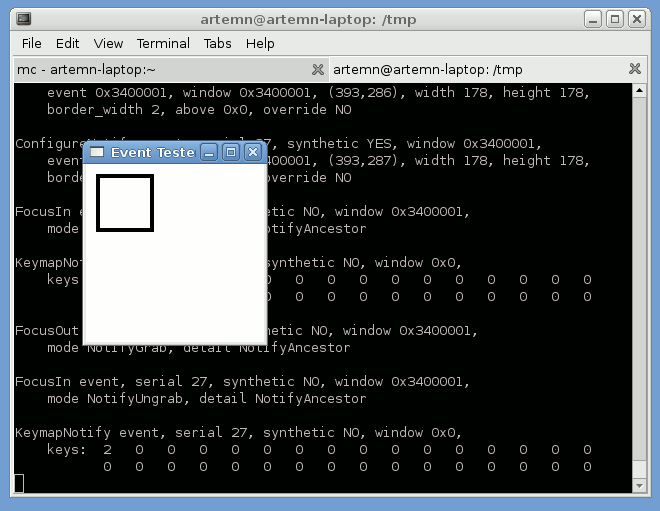
For example, run the following to disable your DELETE key: xmodmap -e 'keycode 107='. BTW you can get keycode that corresponds to certain keyboard button by using simple command xev

xev

The full list of available keycodes and actions assigned to them on UK keyboard is below…
Continue reading…

Another 10 good Unix habits to pickup

Well, IBM publishes a new article about useful Unix command line habits as a follow-up to Michael Stutz’s article. I promise that after reading this article you will say something like “A-ha, I didn’t know you could do that!” :) Here is the part of that staff:

The !$ command returns the last argument used with a command. But what happens if you have a command that used arguments and you want to reuse just one of them? The !:1 operator returns the argument used in a command. The example in Listing 3 shows how you can use this operator in combination with the !$ operator. In the first command, a file is renamed to a more meaningful name, but to preserve use of the original file name, a symbolic link is created. The file kxp12.c is renamed in a more readable manner, then the link command is used to create a symbolic link back to the original file name, in case it’s still used elsewhere. The !$ operator returns the file_system_access.c argument, and the !:1 operator returns the kxp12.c argument, which is the first argument of the previous command.

Listing 3
$ mv kxp12.c file_system_access.c
$ ln –s !$ !:1

Read more here

unix front

Ubuntu: Install Gnome

Why one should want to install Gnome in Ubuntu as it comes with this distribution by default? The answer is rather short: it works for Ubuntu server initially installed without X window manager. Here you go:

sudo aptitude install ubuntu-desktop gdm

When done you can run gnome desktop manager (gdm) and type your username and password to access Gnome Desktop and start using GUI applications:

sudo /etc/init.d/gdm start

If you still have troubles with starting gnome once installed necessary apt packages, most the probably the problme is in improper video driver selected by default. Try the command below or use google or ubuntu forums to find more information about “xorg.conf”:

sudo dpkg-reconfigure xserver-xorg


Pages: Prev 1 2 3 4 5 6 7 8 9 10 11 12 13 14 15 16 17 18 19 20 21 22 23 24 Next
Friendly Sites:Who is behind Linux Screw?
GeekyBits³ | Bash Cures Cancer | OMG! Ubuntu!
My SysAd Blog | Web Upd8
ZEPY | Linux config Wiki | Planet Sysadmin
a non-geek's linux notes | Linux Today
Linux HOWTOs, Tutorials & Projects with Adam Palmer | LinuxAlt.Com
My name is Artem N. (artiomix AT gmail DOT com) and I'm Linux/Unix, Cisco systems engineer. The main idea of Linux Screw is to share relevant knowledge, skills and observations over The Web. Here you can find a lot of information related to different Linux distributions, FreeBSD, IOS as well as a other Open Source around staff. Read more ››